Bab 2: Game Whack-a-Mole (Pukul Tikus Lengkap)
Coba Mainkan Demo Game
Section titled “Coba Mainkan Demo Game”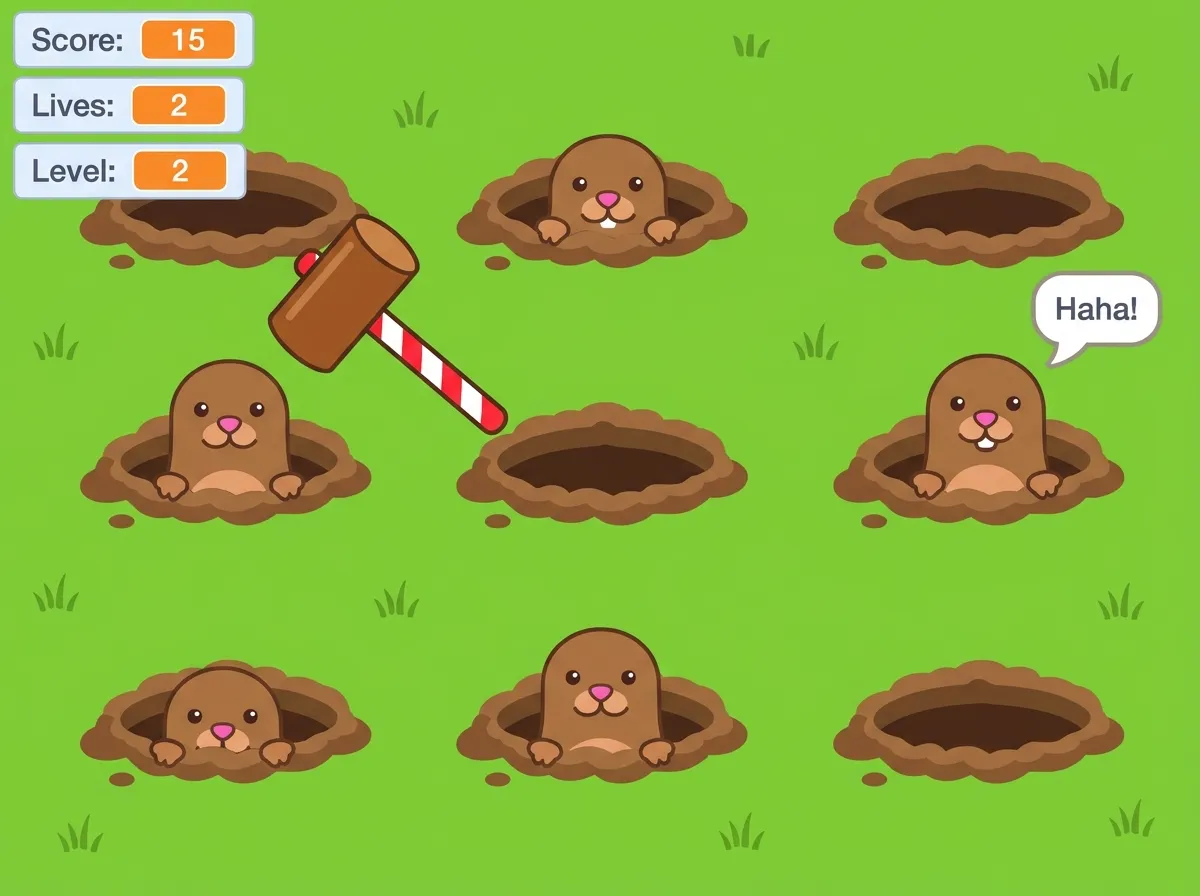
Tampilan permainan Whack-a-Mole dengan indikator Score, Lives, dan Level.
Konsep Teknis yang Dipelajari
Section titled “Konsep Teknis yang Dipelajari”Koordinat Mouse & Titik Pusat
Palu terus mengikuti koordinat X dan Y mouse dengan blok go to mouse-pointer. Titik pusat kostum (costume center) diletakkan tepat di kepala palu agar pukulan akurat.
Anti-Hold Klik (Debounce)
Blok wait until not mouse down? menahan skrip sampai klik mouse dilepas sehingga pemain tidak bisa curang dengan menahan tombol klik.
Fungsi / Prosedur (My Blocks)
Animasi 4 kostum tikus dibungkus ke dalam Mole Up dan Mole Down agar kode utama tetap ringkas dan tidak berulang-ulang.
Menghentikan Skrip Paralel
Saat tikus terpukul, blok stop other scripts in sprite langsung mematikan hitung mundur di Mole Up supaya nyawa pemain tidak ikut berkurang.
Tabel Komponen Sprite, Variabel, & Sinyal Broadcast
Section titled “Tabel Komponen Sprite, Variabel, & Sinyal Broadcast”| Komponen | Nama di Scratch | Peran & Fungsi Teknis |
|---|---|---|
| Variable (Global) | Score, Lives, Level |
Score menghitung tikus terpukul; Lives nyawa pemain (awal 3); Level mempercepat waktu tikus bersembunyi. |
| Broadcast | whack, game over, debug |
whack dikirim saat palu memukul; game over saat nyawa habis; debug untuk menampilkan semua tikus. |
| Sprite Palu | hammer |
Berada di lapisan paling depan (front layer) dengan 2 kostum: hammer up dan hammer down. |
| Sprite Tikus | Mole s.d. Mole8 |
8 sprite tikus dengan 4 kostum bertahap (costume1 s.d. costume4). Tikus belakang berukuran 70–80% untuk efek perspektif. |
| Stage Backdrop | game screen, game over |
2 latar belakang: padang rumput dengan 8 lubang tanah dan layar penutup saat kalah. |
Langkah 1: Membuat Sprite Palu (hammer) & Variabel
Section titled “Langkah 1: Membuat Sprite Palu (hammer) & Variabel”- Hapus sprite kucing bawaan, klik Choose a Sprite → Paint, dan beri nama sprite hammer.
- Gambar palu pada kostum pertama, geser bagian kepala palu tepat ke titik tengah kanvas (crosshair), lalu beri nama kostum
hammer down. - Klik kanan kostum tersebut → Duplicate, beri nama
hammer up, lalu putar sedikit gambar palu ke arah atas. - Buka kategori Variables → Make a Variable, buat 3 variabel (pilih For all sprites):
Score,Lives, danLevel. - Susun 3 skrip blok berikut pada sprite hammer:
when
clicked
when
clicked
if mouse down? then
wait until not mouse down?
Langkah 2: Menggambar 4 Kostum Tikus & Membuat My Blocks
Section titled “Langkah 2: Menggambar 4 Kostum Tikus & Membuat My Blocks”A. Menggambar & Memotong 4 Kostum di Paint Editor
Section titled “A. Menggambar & Memotong 4 Kostum di Paint Editor”Gunakan simulator interaktif di bawah ini untuk melihat posisi potongan tiap kostum terhadap titik tengah kanvas (crosshair) serta cara kerja animasi naik-turun tikus:
4 Kostum Animasi Tikus & Simulator Kemunculan
Buat sprite baru (Paint) bernama Mole. Pakai Circle Tool & Rectangle Tool warna cokelat (#752f2f) untuk kepala melengkung, 2 lingkaran mata putih + hitam, serta mulut tersenyum.
Klik kanan kostum pertama lalu pilih Duplicate sebanyak 3 kali menjadi costume1 sampai costume4. Biarkan costume4 tetap utuh sebagai posisi muncul penuh.
Klik Convert to Bitmap, seleksi bagian bawah badan dengan Select Tool lalu tekan Delete. Geser sisa gambar hingga garis potong tepat menempel di titik tengah kanvas (crosshair).
Ujung Kepala: Potong di atas mata, sisakan puncak kepala.
Setengah Kepala: Potong di bawah mata, mulut belum tampak.
Hampir Penuh: Mata & mulut tampak, potong sedikit perut bawah.
Badan Utuh: Tidak dipotong sama sekali (muncul penuh).
B. Membungkus 4 Kostum ke dalam My Blocks (Mole Up & Mole Down)
Section titled “B. Membungkus 4 Kostum ke dalam My Blocks (Mole Up & Mole Down)”Buka kategori My Blocks → Make a Block, lalu buat blok Mole Up (animasi naik costume1 → costume4 ditambah hitung mundur repeat (10 - Level) sebelum mengurangi Lives) dan Mole Down (animasi turun costume3 → costume1 lalu hide):
define Mole Up
repeat 10 - Level
wait pick random 1 to 15 seconds
define Mole Down
Langkah 3: Memprogram Kemunculan Acak, Deteksi Pukulan, & Mode Debug
Section titled “Langkah 3: Memprogram Kemunculan Acak, Deteksi Pukulan, & Mode Debug”Masih di sprite Mole, tambahkan 4 skrip event di bawah ini.
when
clicked
wait pick random 1 to 15 seconds
if touching hammer ? then
wait pick random 1 to 15 seconds
Langkah 4: Duplikasi 8 Tikus & Program Kenaikan Level di Stage
Section titled “Langkah 4: Duplikasi 8 Tikus & Program Kenaikan Level di Stage”- Gambar 2 backdrop pada Stage:
game screen(rumput hijau dengan 8 lubang cokelat) dangame over(layar bertuliskan GAME OVER). - Klik kanan sprite Mole → Duplicate sebanyak 7 kali hingga terdapat 8 tikus (
Moles.d.Mole8). Posisikan masing-masing tikus di atas lubangnya, dan kecilkan ukuran (Size) tikus bagian belakang ke 70–80%. - Pilih Stage, lalu susun blok berikut untuk menaikkan
Levelsetiap kelipatan skor dan memicugame oversaatLives < 1:
when
clicked
if Score = 10 then
if Score = 20 then
if Score = 30 then
if Lives < 1 then